Photo app for direct-to-cloud upload

OneLens Logo

OneLens Support

Replace Camera Button on Lock Screen

On iOS 16 and later, you can customize your Lock Screen to launch OneLens directly from the camera button. This allows you to quickly access OneLens for work or school photos without unlocking your device.

To set this up: Long press on your Lock Screen, tap the camera button, and select OneLens from the list of available camera apps. Now when you swipe up from the camera button on your Lock Screen, OneLens will launch instead of the default Camera app.
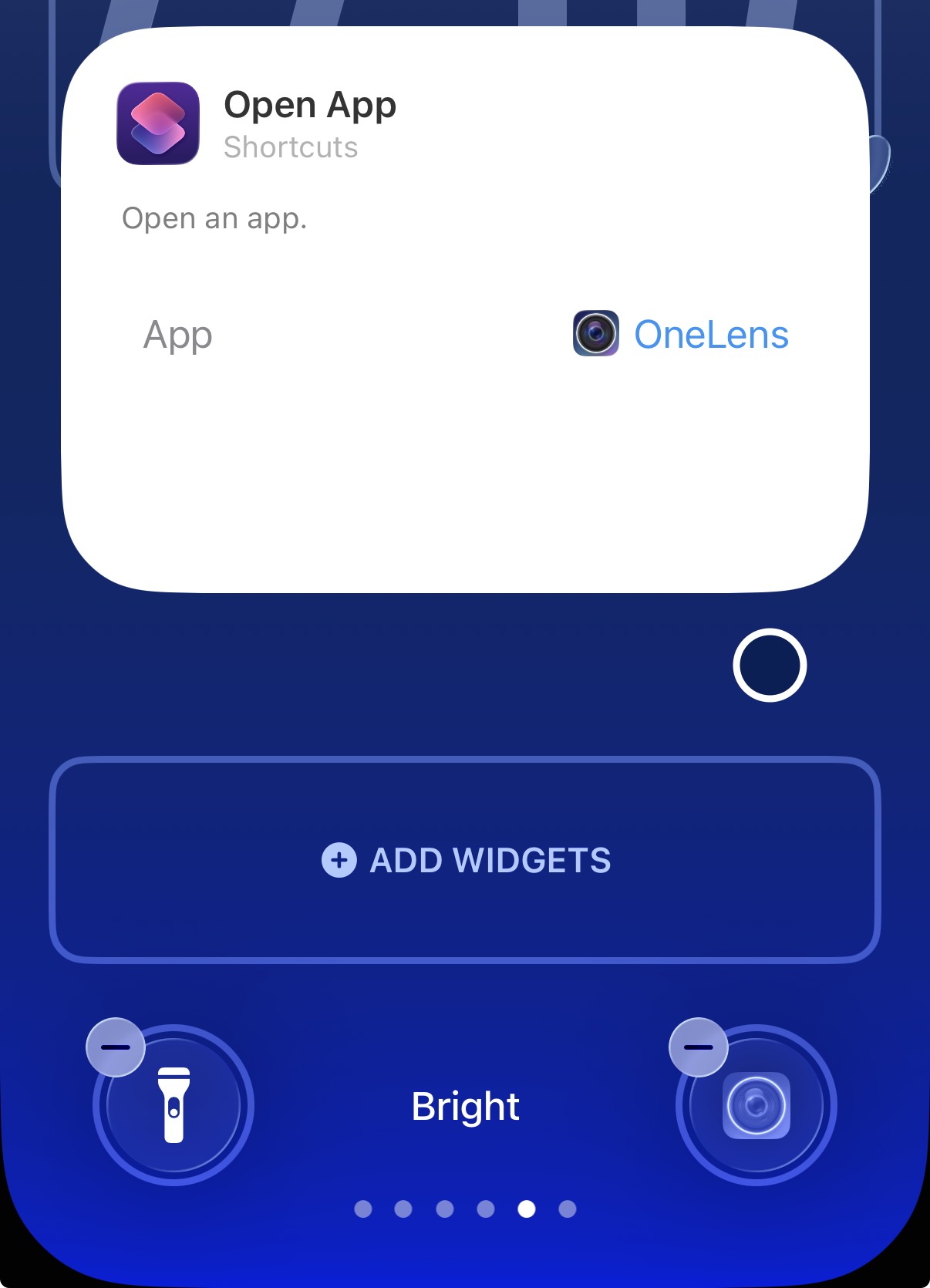
Setting up OneLens as Lock Screen camera button

Launch OneLens with Action Button

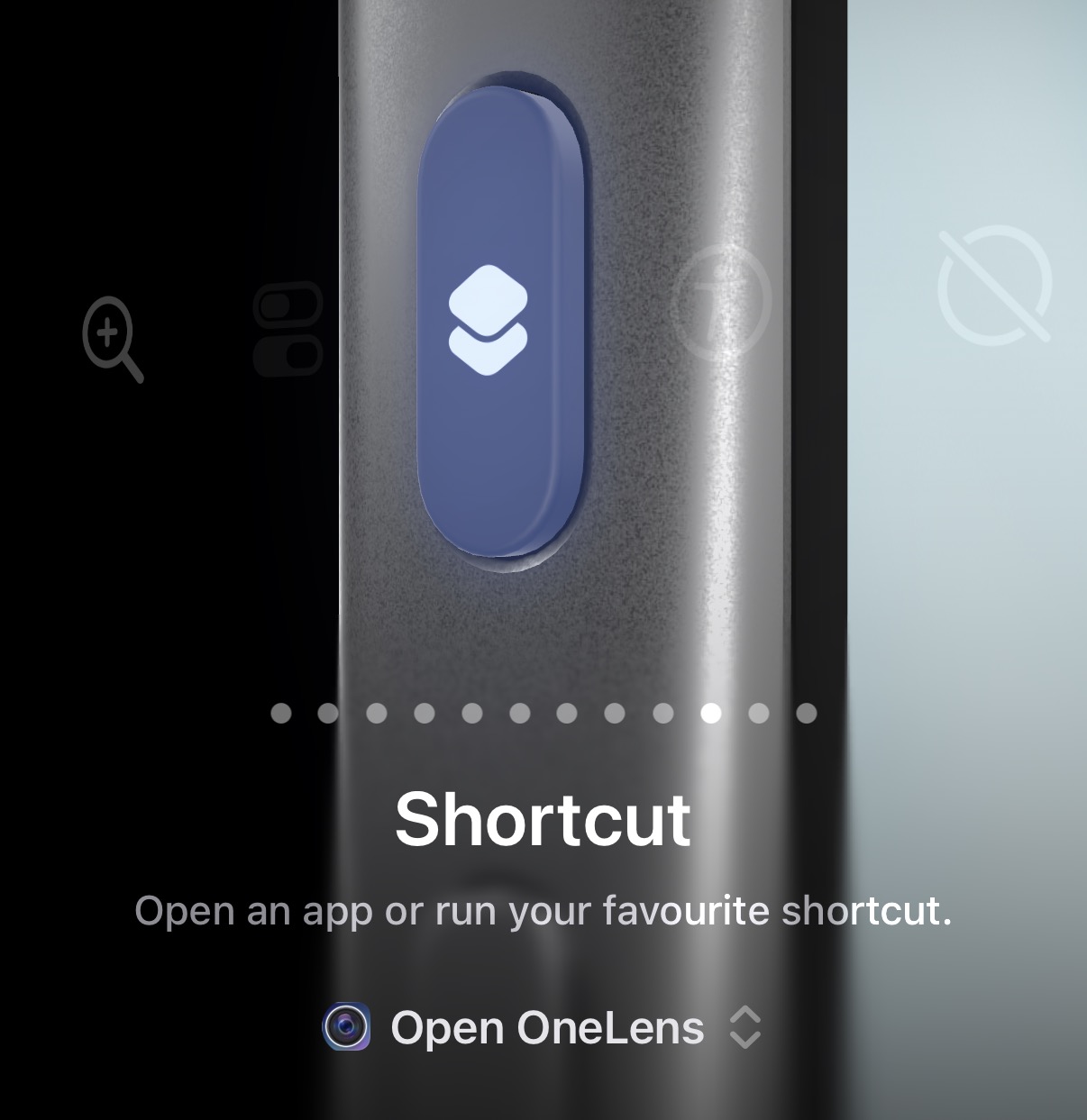
If you have an iPhone with an Action Button (iPhone 15 Pro and later), you can configure it to launch OneLens instantly. This provides the fastest way to access OneLens for quick photo capture.

To configure: Go to Settings → Action Button, then select Shortcuts. Create a new shortcut that opens OneLens, or choose OneLens from your installed apps. Now a single press of the Action Button will launch OneLens, ready to capture and upload your photos.

Configuring Action Button to launch OneLens

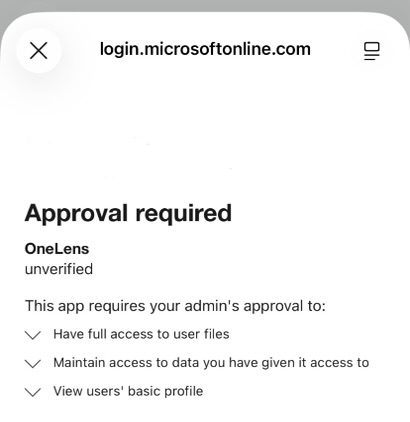
Why OneLens Needs Cloud Service Permissions

When connecting OneLens to OneDrive or Google Drive, you'll see permission requests for access to all user files, maintaining access to data, and viewing your basic profile. This may seem extensive, but it's actually the minimum level of access that these cloud services allow for apps that need to upload files to specific folders.

OneLens uses these permissions only to upload your photos and videos to your chosen folder and display them in the OneLens gallery. We cannot access any other files in your cloud storage, and we don't store any of your data on our servers. All your photos and videos remain exclusively in your cloud storage, accessible only through your local installation of OneLens and your cloud service account.

Understanding cloud service permissions for OneLens

Contact Us

If you have questions or need help with our app, please reach out: